Logitech Signature M650 L Wireless Mouse: Quieter, Smarter Desk Control
This article contains affiliate links. As an Amazon Associate I earn from qualifying purchases.
A laptop trackpad is perfectly capable of getting through a few emails. The difference starts to show when a workday stretches into spreadsheets, long documents, research tabs, and the constant back-and-forth of everyday desktop tasks.
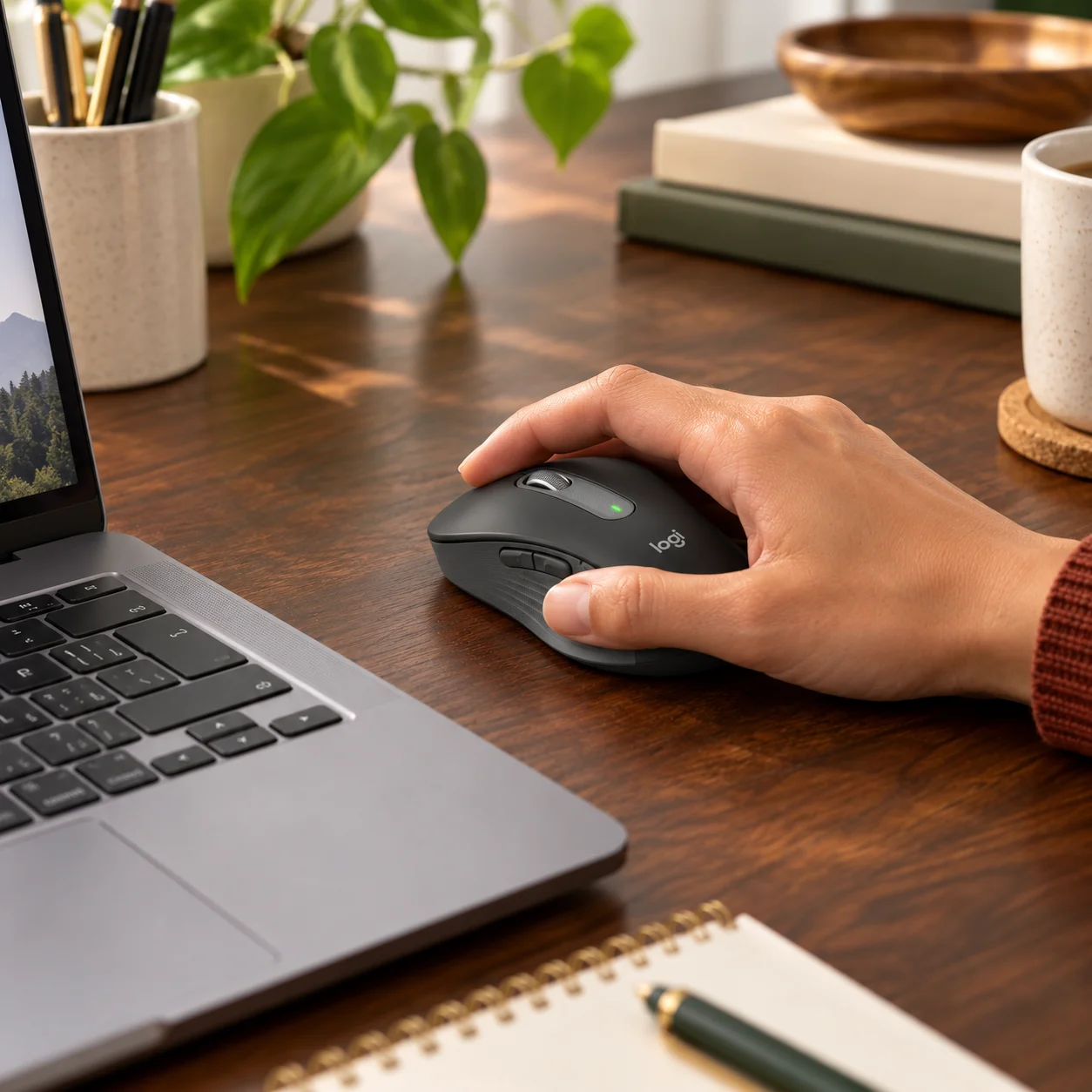
That is where a dedicated mouse starts to feel less like an accessory and more like part of the desk itself. The Logitech Signature M650 L wireless mouse takes a simple category and adds a few thoughtful details: faster or more precise scrolling when you want it, quieter clicking, side-button shortcuts, and two ways to connect.

Why the Logitech Signature M650 L Wireless Mouse Fits Daily Work
The appeal here is not a dramatic feature list. It is the way small friction points are handled. Scrolling through a long page, moving between browser windows, or working while someone else is in the room are ordinary tasks, but they happen hundreds of times in a week.
The M650 L is Logitech’s larger-hand version of the Signature M650. That matters because mouse comfort is personal: a shape that feels neat and compact to one person can feel cramped to someone with a larger hand. The L version gives that audience a roomier option without turning the mouse into a bulky specialist device.
SmartWheel Makes Long Pages Less Tedious
Precision when you need it
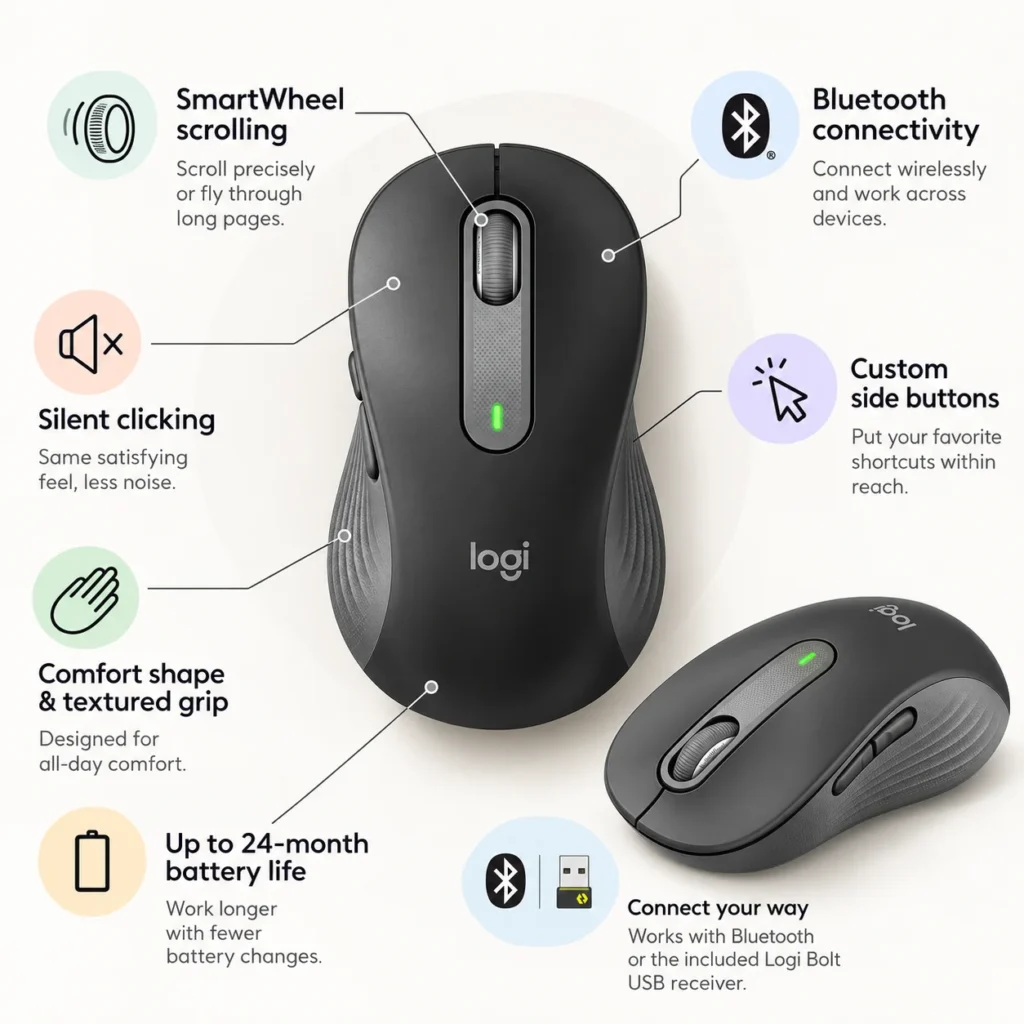
Logitech’s SmartWheel is designed to handle line-by-line scrolling when you are working through a document, spreadsheet, product page, or timeline and want to stop exactly where you intend. For detail-heavy work, that controlled feel is often more useful than simply making the wheel faster.
Speed when you do not
With a quicker flick, the wheel can move through longer pages much faster. It is a small change in behavior rather than another button you have to learn. If your day involves long reports, web research, or large documents, this is the kind of feature that can quietly save repeated effort.
Quieter Clicks Matter More Than They Sound
A mouse does not need to be loud to work well. Logitech uses its SilentTouch approach on the Signature M650 family to reduce click noise, which can be useful in shared offices, quiet rooms, late-night work sessions, or video calls where constant clicking becomes distracting.
It is better to think of this as quieter clicking rather than completely silent operation. The practical benefit is simply a calmer desk sound without giving up the familiar physical click feel.
Comfort for Larger Hands and Longer Sessions
The M650 L is the larger-hand version
Logitech recommends the M650 L for larger hands, while the standard M650 is aimed at small-to-medium hands. That distinction is worth checking before buying because the same feature set can feel very different when the shell does not match your hand size.
Shape and side grip matter during long sessions
The mouse uses a contoured shape with a soft thumb area and textured side grips. Those details do not turn it into a medical ergonomic device, and they should not be treated as a cure for discomfort. They simply give the hand a more defined place to rest and grip during everyday work.
If you spend hours moving between browser tabs, documents, design tools, or admin work, that is the kind of comfort detail that becomes noticeable over a full workday.
Two Ways to Connect
Bluetooth Low Energy
Bluetooth gives you a clean wireless setup without occupying a USB port. It is a practical option for newer laptops, tablets, or desks where available ports are already limited.
Logi Bolt USB receiver
The included Logi Bolt USB receiver gives you another connection path through a USB-A port. Logitech lists a wireless operating range of up to 10 meters, although real-world range depends on the room, interference, and computer setup. The M650 family also supports a broad mix of Windows, macOS, Linux, ChromeOS, iPadOS, and Android devices for basic mouse functions.
Side Buttons You Can Actually Put to Work
Two thumb-side buttons can handle familiar forward and back actions, and Logitech’s Logi Options+ software lets supported Windows and macOS users customize them for other shortcuts. Copy and paste, navigation, or frequently used commands can be placed closer to the hand instead of requiring a keyboard reach every time.
This is one of those features that is easy to ignore on day one and more valuable after you decide what repetitive action deserves its own button.
What to Check Before You Buy
Hand size and handedness
This ASIN is tracked in our project as the M650 L Graphite model. The L size is intended for larger hands, so check Logitech’s current sizing guidance if you are unsure. Also confirm the exact handedness of the variant before ordering; Logitech offers different size and handedness choices within the broader M650 family.
Receiver port and software
If you plan to use the Logi Bolt receiver, make sure your device has an available USB-A port or the appropriate adapter. If you want customized side-button behavior, Logi Options+ support is most relevant on Windows and macOS. Basic mouse functions do not depend on installing customization software on every supported platform.
Battery expectations
The mouse runs on one AA battery. Logitech lists up to 24 months of battery life, but battery life varies with user behavior and computing conditions. Treat that number as an upper-end expectation rather than a promise for every setup.
Who Will Get the Most Value From It?
The Signature M650 L makes the most sense for someone who wants a straightforward work mouse rather than a gaming-style device or a feature-heavy productivity flagship. It fits especially well into home offices, study desks, shared workspaces, and laptop setups where quieter clicks and flexible wireless connection matter.
It is also a sensible upgrade for someone who has been using a trackpad simply because it was already there. The benefit is not that a mouse is automatically better for everyone; it is that pointer movement, scrolling, and shortcuts get their own dedicated tool.
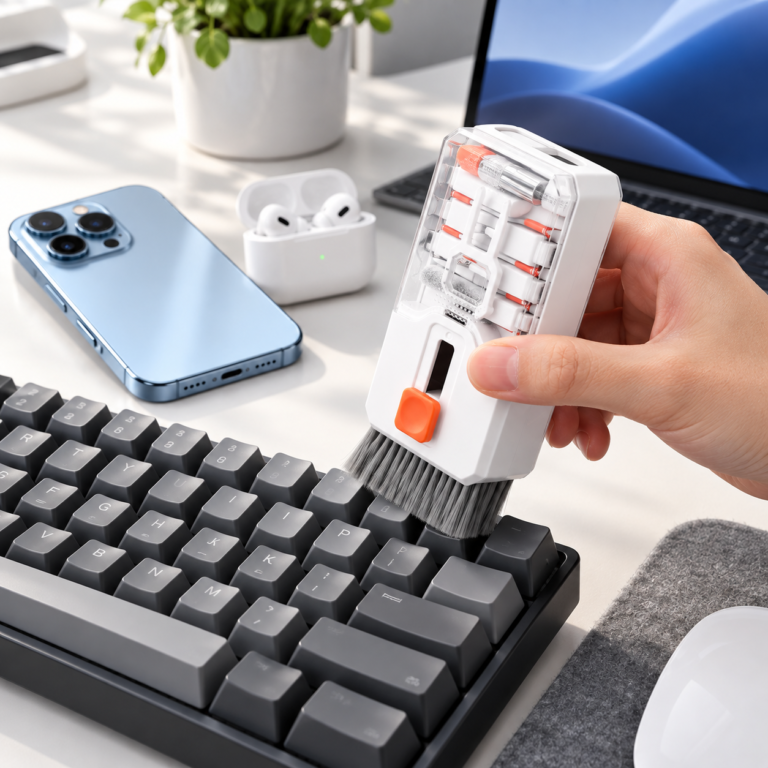
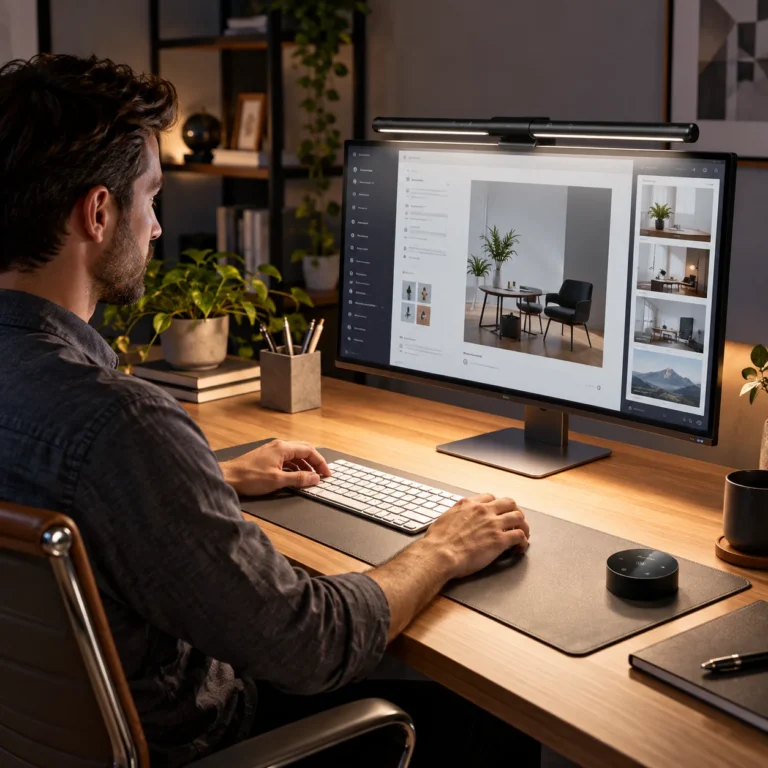
If you are also cleaning up the surface around your mouse and keyboard, see our large desk pad office desk upgrade guide. For evening work, our monitor light bar for desk setup guide looks at another small change that can make a workstation easier to use.
The Everyday Upgrade Take
The Logitech Signature M650 L is a good example of an everyday upgrade that does not need to be complicated. SmartWheel scrolling helps with both careful navigation and long pages, quieter clicks reduce one small source of distraction, and Bluetooth plus Logi Bolt gives you flexibility when connecting.
The larger-hand shape is the part to pay the most attention to. If the size fits you, the rest of the package is built around familiar work rather than flashy extras. That makes it easy to understand who it is for—and easy to decide whether it actually solves a problem at your desk.
This article contains affiliate links. As an Amazon Associate I earn from qualifying purchases.
Check the current Logitech Signature M650 L details and availability on Amazon.
Explore more practical gear in our Office Desk Setup category.
If you also want a cleaner surface for your mouse and keyboard, see our large desk pad office desk upgrade guide.
For evening work, our monitor light bar for desk setup guide looks at another small upgrade that can make a workstation easier to use.